
Table of Contents
- Power Fx in Copilot Studio - A Structured Language for Agent Logic
- Example: Using Power Fx to Modify and Display Dates
- Understanding Variable Prefixes in Copilot Studio
- Use literal values in a formula
- Common Power Fx formulas
- Power Fx (Copilot Studio) Cheat Sheet
- Why Power Fx Complements the LLM
- Practical Importance in Agent Flows
- Conclusion
Summary Lede
Building production-ready (conversational) agents in Microsoft Copilot Studio requires mastering a critical architectural principle: the LLM handles the words, Power Fx handles the computation. While large language models excel at understanding natural language and generating human-like responses, they cannot guarantee the deterministic, auditable calculations that enterprise automation requires. This article explains how Power Fx functions as the computational backbone of your agents, providing repeatable calculations, precise data transformations, and enforceable business rules—while the LLM manages the conversational flow. Whether you are implementing financial workflows, compliance-sensitive processes, or complex agent flows that integrate with Dataverse and Azure AI, understanding this separation of concerns transforms experimental chatbots into reliable enterprise automation solutions.
Read on to explore the practical formulas, variable scoping rules, and architectural patterns that make Power Fx essential for anyone building autonomous agents in the Microsoft ecosystem.
As autonomous agents and agent flows in Microsoft Copilot Studio become more capable and increasingly central to enterprise automation, understanding Power Fx is no longer optional-it is essential. The landscape of enterprise software development has undergone a fundamental transformation in recent years, with conversational interfaces and intelligent automation moving from experimental features to core components of business operations. Within this evolving ecosystem, Power Fx serves a critical architectural role in executing at-scale formula evaluation.
Power Fx acts as the deterministic backbone of your agent’s logic, providing the predictable, rule-based execution layer that complements the reasoning and language interpretation performed by the LLM. This relationship between Power Fx and the LLM represents a carefully considered architectural pattern: the language model excels at interpreting natural language, understanding context, and generating human-like responses, while Power Fx handles the precise computational work-calculations, data transformations, orchestration, and state management—that demands absolute consistency and auditability.
Consider the fundamental nature of how these systems operate. When a user interacts with an agent in Copilot Studio, their message arrives as unstructured natural language. The LLM processes this input, identifying intent, extracting entities, and determining which conversational flow to activate. However, once that intent is understood, the agent must often perform specific operations, such as retrieving data from a database, calculating values based on business rules, validating input against regulatory constraints, or determining which subsequent action to take based on complex conditions. These operations cannot rely on probabilistic reasoning or approximate outputs. They require exactness, repeatability, and transparency-qualities that define Power Fx as a formula language.
This distinction becomes particularly significant in enterprise contexts where agents handle sensitive operations, financial transactions, compliance-related decisions, or integration with systems of record. In such environments, every calculation must produce identical results under identical conditions, every data transformation must be traceable, and every decision point must be explicable to auditors or regulatory bodies. Power Fx provides this foundation, creating a clear separation between the uncertainty inherent in language understanding and the precision required for executing business logic.
For enterprise makers-especially those working with Dynamics 365, Azure AI, Dataverse, and embedded automation—Power Fx empowers you to:
- Implement precise decision logic rather than relying solely on probabilistic reasoning.
- Ensure repeatable behavior for compliance-sensitive processes.
- Manipulate data, variables, collections, and system values in a predictable low-code expression language that aligns with existing Power Platform experience.
- Control how topics communicate with each other, how state flows through the conversation, and how the agent orchestrates automation.
If you are building autonomous agents, approvals, orchestrations, or contextual AI inside business applications, then familiarity with Power Fx is a core competency. This article introduces Power Fx in the context of Copilot Studio agent flows, provides examples, and covers advanced concepts using Microsoft’s official materials.
Power Fx in Copilot Studio - A Structured Language for Agent Logic
Power Fx in Copilot Studio is fully integrated into the authoring canvas and can be used in:
- Set a variable nodes
- Message and Question nodes
- Condition nodes
- Action nodes
- Adaptive Card logic
- Question behavior configurations
- and last but not least in Agents Flows
This allows you to compute values, evaluate conditions, transform user input, and shape your agent’s responses. The placement of Power Fx within these specific nodes reflects a deliberate architectural decision: computational logic resides at the points where data enters the system, transforms during processing, or influences routing decisions. Rather than scattering imperative code throughout the conversational design, Power Fx expressions encapsulate discrete computational operations within well-defined boundaries, making the agent’s behavior more comprehensible during both initial development and subsequent maintenance.
Copilot Studio supports a subset of Power Fx functions, not the complete Power Apps function library. This distinction matters for practitioners migrating existing formulas or designing complex computational logic. Many core table, text, date, and conditional functions behave identically to their Power Apps counterparts, allowing experienced Power Platform developers to transfer their existing knowledge directly into agent development. Functions governing table manipulation-such as Filter, ForAll, and AddColumns-generally operate as expected. Similarly, text processing functions, including Concatenate, Left, Right, and Text formatting operations, maintain their familiar semantics. Date and time calculations through functions such as DateAdd, DateDiff, and Now provide consistent behavior across the platform.
Example: Using Power Fx to Modify and Display Dates
A foundational example from Microsoft’s documentation shows how Power Fx can improve user-facing output.
In the tutorial, the agent receives an order number and wants to communicate an estimated delivery date.
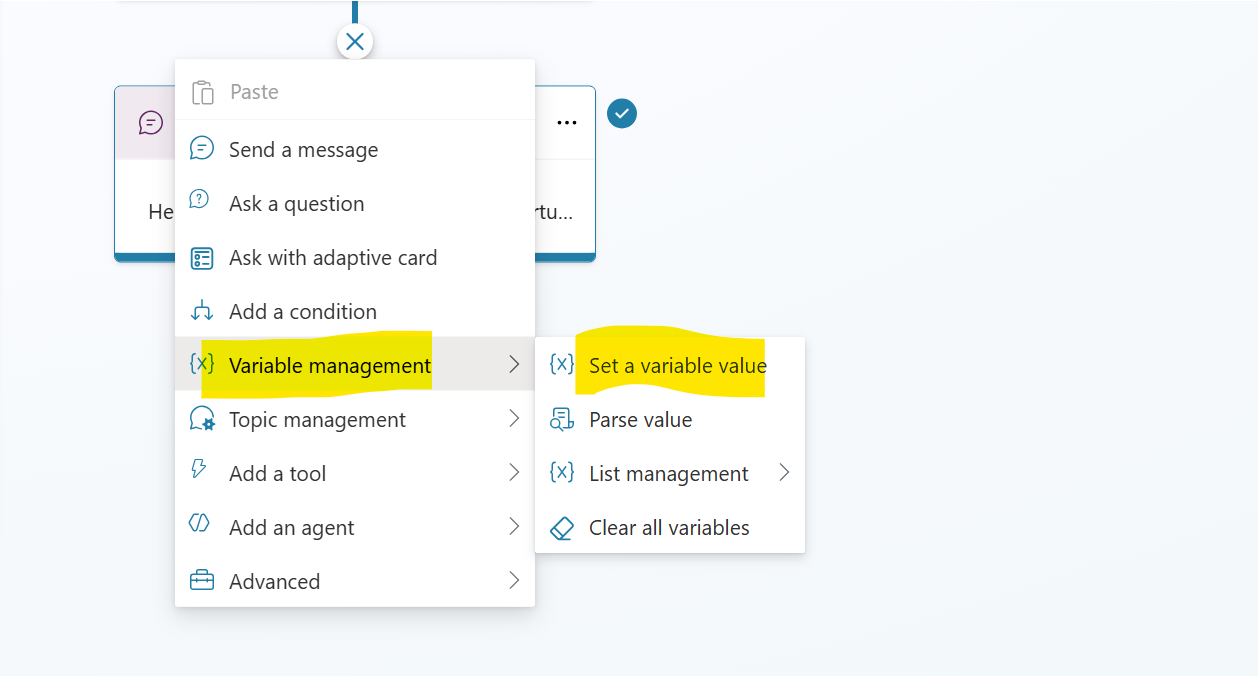
Step-by-step
-
Create a new variable in a Set a variable value node.
-
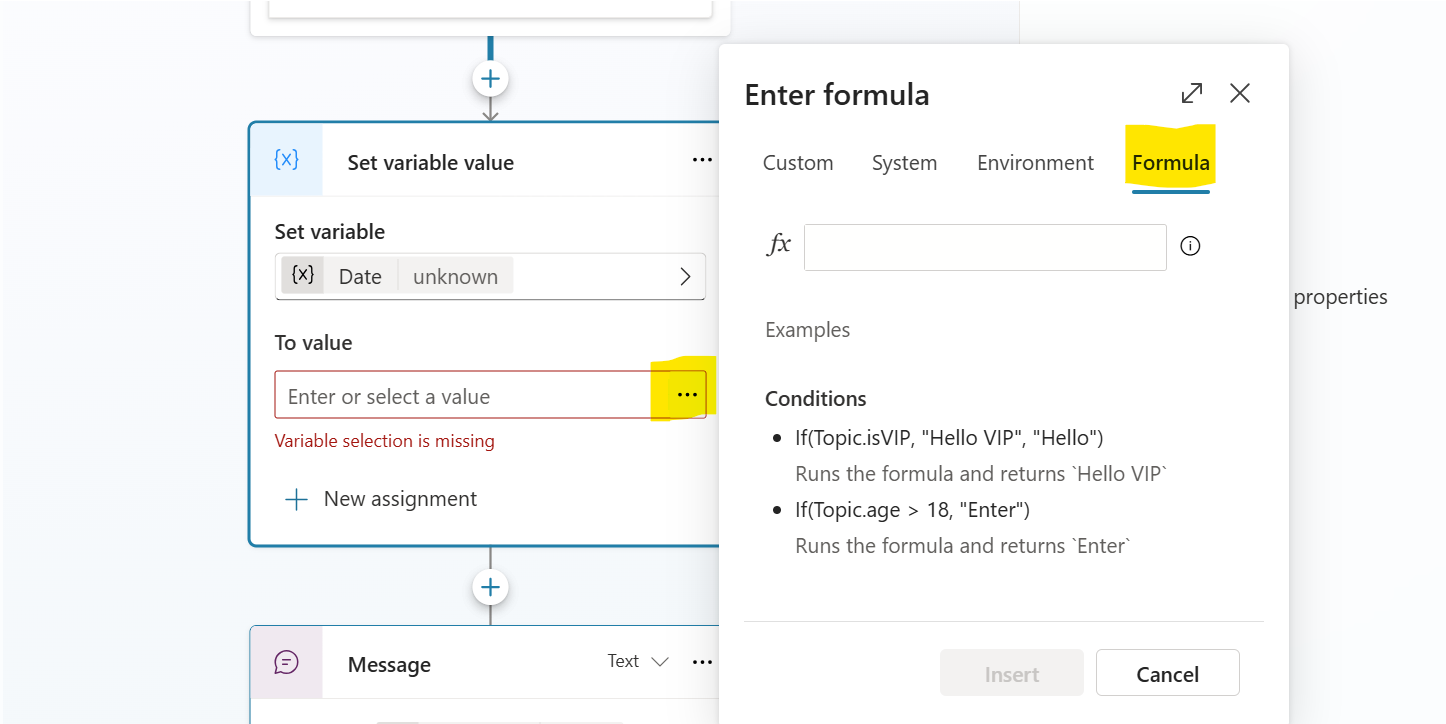
Switch to the Formula tab.
-
Insert this formula to compute the delivery date:
Text(
     DateAdd(
         Now(),
         3,
         TimeUnit.Days
     ),
     DateTimeFormat.LongDate
 )
This takes the current datetime, adds three days, and formats the result as a long date string, which is then stored in the Topic variable Date:

This example highlights why Power Fx is necessary: your agent performs deterministic date transformation without involving the LLM, ensuring accuracy and consistency.
Understanding Variable Prefixes in Copilot Studio
Unlike Power Apps, variables in Copilot Studio require specific prefixes in Power Fx formulas. These prefixes are crucial for correct data access. They indicate the variable’s scope and context:
Topic.for topic-level variables (e.g.,Topic.UserMessage)System.for system-level variables (e.g.,System.CurrentDateTime)Global.for agent-level variables (e.g.,Global.AgentName)
These prefixes make the flow of state inside an agent explicit, which is essential for multi-step logic and orchestrations.
Use literal values in a formula
When working with Power Fx formulas, you are not restricted to referencing variables alone. The language also permits the direct inclusion of literal values-that is, fixed data values that you explicitly write into the formula itself. When you choose to embed a literal value within a formula expression, it is necessary to express that value according to the syntax conventions that correspond to its underlying data type. The table below provides a detailed enumeration of the data types supported in Power Fx, along with illustrative examples that demonstrate the specific formatting requirements for representing literal values of each type.
| Type | Format examples |
|---|---|
| String | "hi", "hello world!", "copilot" |
| Boolean | Only true or false |
| Number | 1, 532, 5.258, -9201 |
| Record and Table | [1], [45, 8, 2], ["cats", "dogs"], { id: 1 }, { message: "hello" }, { name: "John", info: { age: 25, weight: 175 } } |
| DateTime | Time(5,0,23), Date(2022,5,24), DateTimeValue("May 10, 2022 5:00:00 PM") |
| Choice | Not supported |
| Blank | Only Blank() |
Common Power Fx formulas
The following table lists data types and Power Fx formulas you can use with each data type. Links point directly to Microsoft’s official documentation for your reference.
Power Fx (Copilot Studio) Cheat Sheet
Numbers & Math
| Function | Description | Example → Result |
|---|---|---|
| Abs | Absolute value of a number | Abs(-55) → 55 |
| Round | Round to the specified number of digits | Round(3.14159, 2) → 3.14 |
| RoundDown | Round down to the specified digits | RoundDown(3.9, 0) → 3 |
| RoundUp | Round up to the specified digits | RoundUp(3.1, 0) → 4 |
| Trunc | Truncate a number toward zero | Trunc(-3.9) → -3 |
| Int | Integer part of a number | Int(7.8) → 7 |
| Value | Convert text to number | Value(“42”) → 42 |
| Decimal | Convert string to decimal number | Decimal(“12.5”) → 12.5 |
| Average | Average of a table expression or set of numbers | Average([1,2,3,4]) → 2.5 |
| Degrees / Acos / Asin / Atan / Atan2 / Cos / Cot | Trig functions (radians) and conversions | Degrees(Acos(0.5)) → 60 |
Text
| Function | Description | Example → Result |
|---|---|---|
| Concatenate / Concat | Join strings or project and join from a table. | Concatenate(“Hello “, “Holger”) → “Hello Holger” |
| Text | Convert values (like numbers/dates) to text with formatting. | Text(1234.5, “[$-en-US]#,##0.00”) → “1,234.50” |
| Len | Length of a string. | Len(“Copilot”) → 7 |
| Lower / Upper / Proper | Case conversion. | Proper(“microsoft copilot”) → “Microsoft Copilot” |
| Find | Find substring position (1‑based). | Find(“pilot”,”Copilot”) → 3 |
| Replace / Substitute | Replace text by position or substring. | Substitute(“a-b-c”,”-“,”/”) → “a/b/c” |
| StartsWith / EndsWith | Prefix/suffix check. | StartsWith(“Copilot”,”Co”) → true |
| EncodeUrl / EncodeHTML | URL/HTML escape text. | EncodeUrl(“a b”) → “a%20b” |
| Char | Return character from code. | Char(10) → “\n” (newline) |
Regex/Match note: Some community posts mention gaps for Match/MatchAll support in Copilot Studio; validate in your environment.
Logical & Conditional
| Function | Description | Example → Result |
|---|---|---|
| And / Or / Not | Boolean logic (&& also supported for And). | And(5>3, 2<1) → false |
| If | If/elseif/else branching. (Power Fx general) | If(Score>=50,”pass”,”fail”) → “pass” (when Score=80) |
| Switch | Multi-branch by matching a value. (Power Fx general) | Switch(“B”,”A”,1,”B”,2,0) → 2 |
| Coalesce | First non‑blank value. | Coalesce(Blank(), “fallback”) → “fallback” |
| Boolean | Convert text/number/dynamic to Boolean. | Boolean(“true”) → true |
| Blank | Produce a blank (NULL-like) value. | Blank() → blank |
Date & Time
| Function | Description | Example → Result |
|---|---|---|
| Now / Today / UTCNow / UTCToday | Current local/UTC date-time or date. (Power Fx general) | Text(UTCNow(), “yyyy-mm-ddTHH:MMZ”) → e.g., “2026-01-16T13:11Z” |
| Date / DateTime / Time | Construct date/time values. | Date(2026,1,16) → 2026-01-16 |
| DateValue / TimeValue / DateTimeValue | Parse date/time from text. | DateTimeValue(“May 10, 2022 5:00 PM”) → 2022-05-10 17:00 |
| Day / Month / Year / Hour / Minute / Second / Weekday | Extract parts of a date-time. | Year(Date(2026,1,16)) → 2026 |
| DateAdd | Add days/months/quarters/years. | DateAdd(Date(2026,1,16), 30, Days) → 2026-02-15 |
| DateDiff | Difference between two dates in a unit. | DateDiff(Date(2026,1,1), Date(2026,1,16), Days) → 15 |
| EDate | Add/subtract months, preserving day-of-month when possible. | EDate(Date(2026,1,31), 1) → 2026-02-29 (leap handling varies by calendar) |
| TimeZoneOffset | Minutes difference from UTC. (Power Fx general) | TimeZoneOffset(Now()) → e.g., 60 for CET winter. |
Tables, Records & Collections
| Function | Description | Example → Result |
|---|---|---|
| AddColumns | Return a table with computed columns added. | AddColumns([1,2,3], “Squared”, Value*Value) → [{Value:1,Squared:1}, …] |
| DropColumns | Remove one or more columns. | DropColumns(Table, “Temp”) → table without Temp |
| Count / CountA / CountIf / CountRows | Count numbers, non‑blank, conditional, or rows. | CountIf([1,2,3,4], Value>2) → 2 |
| Filter | Filter records by a predicate. (Power Fx general) | Filter(Orders, Amount>1000) → high‑value orders |
| Search | Full/partial text search on columns. (Power Fx general) | Search(Products, “pro”, “Name”) → matching rows |
| LookUp | First record matching a condition. (Power Fx general) | LookUp(Users, Email=”a@b.com”) → record or blank |
| Distinct | Unique values from a column/table. | Distinct([1,1,2]) → [{Value:1},{Value:2}] |
| First / Last / FirstN / LastN / Index | Access first/last/Nth items. (Power Fx general) | Index([10,20,30],2) → 20 |
| ForAll | Iterate over a table and evaluate an expression. (Power Fx general) | ForAll([1,2,3], Value*2) → [2,4,6] |
| AsType | Treat a record reference as a specific table type. | AsType(AnyRecord, MySchema) → typed record |
| Column / ColumnNames | Retrieve column names/values from a Dynamic value. | ColumnNames(DynamicVar) → [“Col1”,”Col2”,…] |
JSON & Dynamic
| Function | Description | Example → Result |
|---|---|---|
| JSON | Convert a value to a JSON text string. (Power Fx general) | JSON({a:1}) → “{“a”:1}” |
| ParseJSON | Parse JSON text to an untyped object. (Power Fx general) | ParseJSON(“{"x":5}”) → dynamic with x=5 |
Colors (useful for UI-rich responses or cards)
| Function | Description | Example → Result |
|---|---|---|
| ColorValue | Parse CSS name or hex color. | ColorValue(“#0078D4”) → color value |
| ColorFade | Fade a color by a percentage. | ColorFade(ColorValue(“#000000”), 0.5) → 50% lighter |
Web/Encoding Utilities
| Function | Description | Example → Result |
|---|---|---|
| EncodeUrl | URL-encode special characters. | EncodeUrl(“a+b c”) → “a%2Bb%20c” |
| EncodeHTML | Escape characters for HTML context. | EncodeHTML(“”) → “<b>” |
Conversions & Misc
| Function | Description | Example → Result |
|---|---|---|
| Dec2Hex | Convert number to hexadecimal string. | Dec2Hex(255) → “FF” |
| Boolean | Convert text/number/dynamic to true/false. | Boolean(1) → true |
Copilot Studio usage tips (quick)
Variables: Always prefix (System., Global., Topic.).
Example in a condition:
If(Global.TotalSales > 100000, “High”, “Normal”)
Literals: Enter values in the proper literal format (strings in quotes, tables in [ ], records in { }).
Number formatting: Remember US decimal and comma separators when entering parameters and numeric literals.
Why Power Fx Complements the LLM
As discussed throughout this article, the architectural relationship between Power Fx and the large language model in Copilot Studio reflects a deliberate separation of concerns that addresses the distinct computational requirements of conversational agents in production environments.
Power Fx provides several specific technical capabilities that prove essential when building agents that must operate reliably within enterprise constraints:
Deterministic logic for calculations, data manipulations, conditional flows, and business rules. When an agent needs to calculate tax amounts, apply discount rules, validate input against business constraints, or execute multi-step conditional logic, these operations must produce identical results every time the same inputs are provided. Power Fx expressions execute predictably, returning the same output for the same input state, which allows developers to reason about agent behavior with confidence. This repeatability becomes particularly important when agents handle financial calculations, regulatory compliance checks, or data transformations that feed into downstream systems, where inconsistencies could cause operational failures or data integrity issues.
Control over tables and collections, enabling reproducible filters, aggregations, and mappings. Agents frequently work with structured data retrieved from Dataverse, SharePoint lists, SQL databases, or external APIs. Power Fx provides a functional programming model for manipulating these datasets, filtering records based on specific criteria, transforming record structures through projection operations, aggregating values across collections, and joining data from multiple sources. These operations occur within the agent runtime without requiring external service calls, reducing latency and simplifying the execution path. The table manipulation functions in Power Fx allow developers to express complex data operations concisely while maintaining clarity about what transformations occur at each step in the conversational flow.
A predictable mechanism for Adaptive Cards, Instructions, and Tool execution, integrating logic with user interface and automation components. Adaptive Cards often display dynamic content computed from variables, user input, or system state. Power Fx expressions embedded within Adaptive Card definitions calculate values for display, control visibility of card elements, and format data appropriately for presentation. Similarly, when configuring instructions that guide the LLM’s behavior or when invoking tools and actions that connect to external systems, Power Fx expressions prepare parameters, validate preconditions, and transform results. This integration keeps computational logic close to the context where it executes, making the agent’s behavior more transparent during development and troubleshooting.
This architectural division-where the language model handles natural language understanding, intent recognition, and response generation, while Power Fx handles computational operations, data manipulation, and business rule execution—establishes a foundation for building agents that are both conversationally capable and operationally reliable. The LLM component addresses the inherent ambiguity and variability of human language. In contrast, the Power Fx component ensures that the agent’s interactions with data and systems follow defined, testable, and auditable rules. This separation allows organizations to deploy conversational agents for production workloads where behavior must be consistent, outcomes must be traceable, and operations must comply with regulatory or security requirements.
Practical Importance in Agent Flows
Agent flows in Copilot Studio represent the execution layer where autonomous agents interact with external systems and coordinate multi-step processes. These flows handle operations such as invoking HTTP endpoints, querying databases through connectors, triggering approval processes in Power Automate, and coordinating data exchange between Dataverse and third-party systems. Within this execution context, Power Fx functions as the computational layer that bridges conversational state and system integration requirements.
Specifically, Power Fx expressions within agent flows address several technical requirements:
-
Data validation before action execution. Before invoking an external API or updating a database record, the agent must verify that input parameters meet expected formats, fall within acceptable ranges, and satisfy business constraints. Power Fx expressions embedded in condition nodes or within action input configurations evaluate these constraints, preventing invalid data from reaching external systems. For example, validating that a submitted order total matches the sum of line items, or confirming that a date falls within an acceptable scheduling window.
-
Parameter computation for system integrations. External actions often require specific data formats, calculated identifiers, or transformed values. Power Fx formulas prepare these parameters by concatenating strings into required formats, converting data types, performing mathematical operations on numeric inputs, or extracting subsets of structured data. This transformation occurs within the agent flow itself, reducing the need for intermediate services or custom code.
-
Routing decisions based on runtime state. Agent flows frequently branch based on system variables, user permissions, data lookup results, or environmental conditions. Power Fx expressions in condition nodes evaluate these factors to determine execution paths, directing high-value transactions to approval workflows while auto-approving standard requests, routing requests to different backend systems based on geographic region, or selecting between cached and real-time data sources based on freshness requirements.
-
Consistency across repeated executions. Agent flows execute repeatedly across many user sessions, often handling similar requests with varying input parameters. Power Fx ensures that identical inputs produce identical computational results, making flow behavior predictable and testable. This consistency allows developers to validate flow logic through test cases and maintain confidence that production behavior matches development expectations.
The combination of conversational agents, agent flows, and Power Fx creates a technical architecture in which natural-language interfaces trigger structured automation processes. Understanding Power Fx becomes necessary when building agents that must reliably interact with enterprise systems, enforce business rules during automated processes, or maintain data integrity across conversational and transactional boundaries.
Conclusion
As autonomous agents become increasingly central to enterprise automation, Power Fx has emerged not merely as a convenient formula language but as an essential architectural component that defines the boundary between conversational flexibility and computational precision. The relationship between Power Fx and the large language model in Copilot Studio represents a carefully considered separation of concerns: the LLM excels at interpreting natural language and managing conversational context, while Power Fx provides the deterministic execution layer for calculations, data transformations, business rule enforcement, and state management.
This architectural division addresses fundamental requirements that enterprise agents must satisfy. When agents handle financial transactions, compliance-sensitive decisions, or integrations with systems of record, they require computational operations that produce identical results under identical conditions, logic that remains auditable and traceable, and behavior that remains consistent across thousands of user interactions. Power Fx delivers these guarantees through its functional programming model, explicit variable scoping with Topic, System, and Global prefixes, and comprehensive libraries for manipulating strings, dates, numbers, tables, and records.
For enterprise makers working with Dynamics 365, Azure AI, Dataverse, and agent flows, Power Fx competency directly impacts the reliability, maintainability, and regulatory compliance of deployed solutions. Understanding how to implement conditional logic in condition nodes, transform data before action execution, validate input against business constraints, and prepare parameters for external system integrations determines whether conversational agents can transition from experimental prototypes to production workloads that handle critical business processes.
The examples and patterns discussed throughout this article-from basic date formatting to complex table manipulations, from variable scoping rules to integration with Adaptive Cards and agent flows—form the foundation for building agents that are both conversationally capable and operationally reliable. As the Power Platform continues to evolve and autonomous agents take on increasingly sophisticated responsibilities, deep familiarity with Power Fx will remain a core competency for anyone designing enterprise-grade conversational automation within Microsoft’s ecosystem.