

Table of Contents
Technical overview and configuration guide (January 2026)
Summary Lede Moving your agents from Agent Builder(aka Copilot Studio lite) — the simplified creation tool embedded in Microsoft 365 Copilot — to the full-featured Copilot Studio environment represents a significant step forward in how you manage and deploy conversational AI within your organization. While Agent Builder excels at helping teams quickly prototype and launch straightforward agents for internal use, Copilot Studio provides the comprehensive tooling needed when those agents mature into reliable, enterprise-scale solutions.
Why read it? Are you looking to scale your Copilot agents from small-team tools to enterprise-ready solutions? This article explains the compelling benefits, migration process, and critical considerations—so you can confidently elevate your agent strategy.
This article uses the terms “Agent Builder” and “Copilot Studio Lite” interchangeably to refer to the same simplified agent-creation tool in Microsoft 365 Copilot. The full-featured environment is called “Copilot Studio.” Microsoft is continuously changing naming conventions, so please refer to the latest official documentation for the most current terminology.
Introduction
The migration process itself is straightforward: you essentially create a copy of your existing agent in a Power Platform environment where Copilot Studio operates. However, the real value lies in what becomes available after migration. You gain access to proper version control mechanisms that let you track changes over time, stage updates across multiple environments, and roll back to previous configurations if something goes wrong. Analytics capabilities expand dramatically, giving you detailed insights into how users interact with your agents, where conversations succeed or fail, and which knowledge sources prove most valuable.
From a governance perspective, the difference is substantial. Copilot Studio integrates with Power Platform’s security model, allowing you to implement role-based access controls, enforce data loss prevention policies, and maintain detailed audit trails of who changed what and when. You can configure connectors to external systems with appropriate guardrails, manage how agents access sensitive data, and ensure everything complies with your organization’s compliance requirements.
The migration also opens the door to more sophisticated agent behaviors. You can implement conditional logic that routes conversations based on context, integrate with external APIs and services beyond what Agent Builder supports, and leverage Dataverse as a structured data layer for your agent’s knowledge and state management. If your organization runs separate development, testing, and production environments—as most enterprises do — Copilot Studio’s multi-environment support becomes essential for maintaining stable operations while continuously improving your agents.
This article walks through the practical aspects of performing this migration: understanding which components transfer automatically and which require manual reconfiguration, meeting the licensing and environment prerequisites, and establishing a workflow that minimizes disruption to users who depend on your existing agents.
Why Migrate?
Agent Builder is great for quickly building conversational agents within Microsoft 365 Copilot. But when you need advanced features like:
- Version control, staged rollouts, and rollback options
- Deep usage analytics and dashboards
- Enterprise governance: role-based access, data policies, audit trails
- Complex customization: conditional logic, external API integrations
- Multi-environment management (dev, test, prod)
- Broader connectors and Dataverse integration
Copilot Studio is designed for these needs—making it the scalable, secure next step for production-ready bots.
What Transfers in the Migration
Understanding the Migration Mechanism
When you’ve developed an agent using Agent Builder within Microsoft 365 Copilot and reach the point where you require capabilities that exist only in the complete Copilot Studio platform, Microsoft provides a direct migration path through the Copy to Copilot Studio function.
How to Initiate the Copy
You’ll find this option in the More options (…) menu when viewing your agent in Agent Builder. The purpose of this function is to create a duplicate of your existing agent in the Power Platform environment where Copilot Studio operates, eliminating the need to recreate it manually.
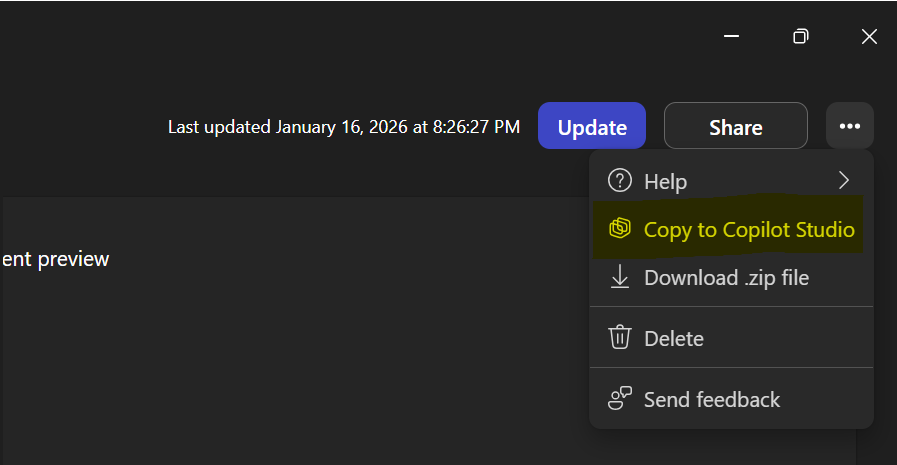
Important: This Is a Copy, Not a Move
It’s important to understand that this is a copy operation, not a move or synchronization. Your original agent in Agent Builder remains unchanged and continues to function exactly as before.
What you get is an independent snapshot of that agent’s configuration at the moment you initiated the copy process. Any subsequent changes you make to either version—the original in Agent Builder or the copy in Copilot Studio—will not affect the other.
This design allows you to:
- Continue using the Agent Builder version while you configure and test the Copilot Studio version
- Ensure no disruption to users who depend on the existing agent
- Validate the migrated version before fully transitioning
What Gets Transferred Automatically
The copy operation handles a specific subset of your agent’s configuration; not everything is copied over, especially uploaded files. Understanding exactly what transfers automatically helps you plan the remaining setup work after migration.
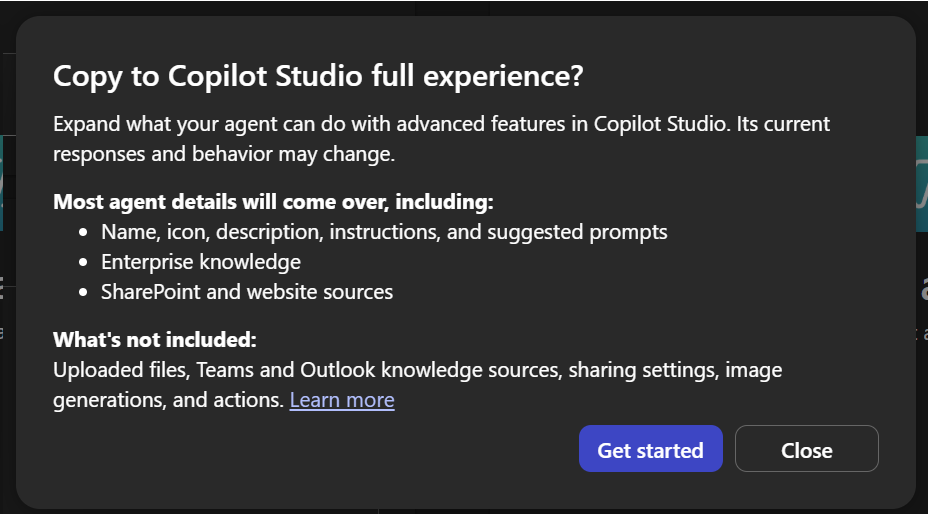
Select the target environment for your Copilot Studio agent during the copy process.
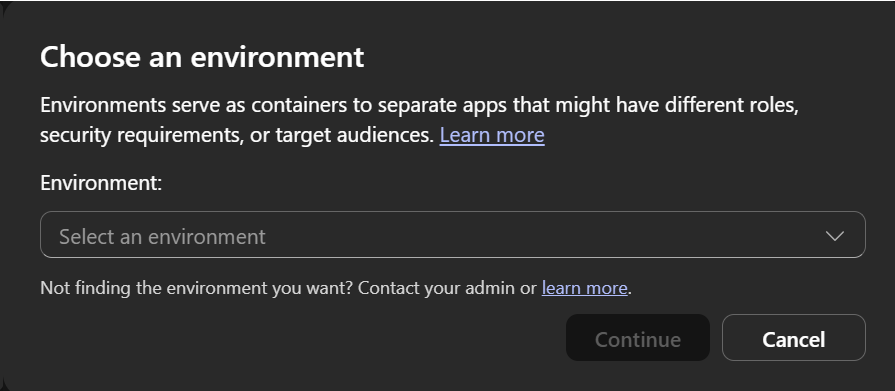
Basic identification and behavior elements that copy over include the agent’s name, the description that appears to users, and the core instructions that define how the agent should respond and behave. These static text fields define the foundation of your agent’s personality and purpose. The suggested prompts you configured to help users get started with the agent also transfer, maintaining that initial user experience guidance.
Visual identity is preserved through the automatic transfer of your agent’s icon, ensuring brand consistency between the Agent Builder and Copilot Studio versions.
Knowledge sources represent a more nuanced aspect of the migration. SharePoint files, folders, and entire sites that you designated as knowledge sources in Agent Builder will transfer to Copilot Studio. In the same way, any websites you added as knowledge sources make the transition. These knowledge sources are the foundation of your agent’s ability to provide accurate, contextually relevant responses based on your organization’s specific information.
What Requires Manual Reconfiguration
Several configuration categories do not transfer automatically during the copy operation. These require deliberate action on your part once the agent exists in Copilot Studio.
Enterprise knowledge accessed through Copilot connectors represents a significant gap in the automatic transfer process. In contrast, basic SharePoint and website knowledge sources transfer; enterprise knowledge that relies on specialized Copilot connectors must be manually reconfigured in Copilot Studio after migration. This includes setting up the appropriate connectors and reestablishing the connection to your enterprise data sources. The underlying reason relates to how these connectors authenticate and authorize access—these security configurations don’t automatically replicate across environments.
Scoped Copilot connectors pose a limitation in the current Copilot Studio implementation. If your Agent Builder agent uses scoped connectors that restrict data access based on specific criteria, you should know that Copilot Studio doesn’t currently support this capability. You’ll need to evaluate whether alternative approaches exist for obtaining similar data scoping within Copilot Studio’s connector framework, or determine whether this is a blocking issue for your migration timeline.
Embedded files you uploaded directly to Agent Builder don’t transfer during the copy operation. The system doesn’t migrate the binary file content itself; it only references external knowledge sources, such as SharePoint locations. After migration, you’ll need to upload these files again directly to Copilot Studio. This manual step lets you verify that files remain current and relevant for the Copilot Studio environment.
Teams chats and meetings that served as knowledge sources in Agent Builder require a different implementation approach in Copilot Studio. Instead of the embedded access mechanism used in Agent Builder, you’ll add the Power Platform connector for Microsoft Teams within Copilot Studio. This connector provides the access pathway to Teams content, though you may need to reconfigure specific permissions and scope settings to match your original Agent Builder configuration.
Email content from Outlook follows a similar pattern to Teams integration. If your Agent Builder agent drew knowledge from emails, you’ll need to add the Power Platform connector for Outlook in Copilot Studio and reconfigure which mailboxes or folders the agent can access as knowledge sources.
Code generation, document creation, and chart generation capabilities require enabling the code interpreter functionality in Copilot Studio. While Agent Builder may have included these features by default or with simpler configuration, Copilot Studio treats the code interpreter as an explicit capability you enable in the agent’s settings. Navigate to the appropriate settings section and activate the code interpreter to restore this functionality.
Image generation from text prompts represents a functional gap between Agent Builder and Copilot Studio. If your agent can generate images from user descriptions in Agent Builder, this capability isn’t currently available in Copilot Studio. Basic charts and graphs remain possible through the code interpreter capability, but photorealistic image generation or creative visual content creation from prompts isn’t supported. You’ll need to assess whether this limitation affects your agent’s core value proposition and plan accordingly—either by removing image generation from your agent’s advertised capabilities or by maintaining a parallel Agent Builder version for use cases that require it.
| Configuration | Action |
|---|---|
| Enterprise knowledge (Copilot connectors) | Set up connectors after you copy your agent. |
| Scoped Copilot connectors | Not currently supported in Copilot Studio. |
| Embedded files | Upload the files again in Copilot Studio. |
| Teams chats and meetings added as knowledge | Add the Power Platform connector for Teams in Copilot Studio. |
| Emails added as knowledge | Add the Power Platform connector for Outlook in Copilot Studio. |
| Create documents, charts, and code | Add code interpreter via agent settings in Copilot Studio. |
| Create images from prompts | Not currently supported in Copilot Studio. Basic charts and graphs are part of the code interpreter capability. |
Licensing & Environment Requirements
- You need either a Microsoft 365 Copilot or Copilot Studio license. Trials may be available depending on tenant policies.
- The migration process depends on Power Platform environments:
- Must support Dataverse and be in a supported region
- You need appropriate security roles and environment accessibility
- Admin-managed governance, data, and connector policies are managed in Power Platform Admin Center; sharing limits may apply
Post-Migration Considerations
- Once copied, the new agent is independent—subsequent edits in Agent Builder won’t sync
- Every “Copy” operation creates a new agent instance
- Retire or archive old agents after ensuring continuity
- Periodically revisit environment-specific policies and data retention setups
Conclusion
The process of moving your agents from Agent Builder into the complete Copilot Studio environment represents more than a simple platform upgrade—it fundamentally changes how your organization approaches conversational AI as a strategic capability rather than a tactical tool. This transition acknowledges that what began as a straightforward internal assistant has demonstrated sufficient value to warrant the infrastructure, governance, and operational discipline that enterprise software demands.
From a practical standpoint, the migration provides access to capabilities that become essential as usage scales beyond small teams. Version control mechanisms let you track exactly what changed in your agent’s configuration over time, which is critical for troubleshooting unexpected behavior and understanding how the agent evolved to meet changing business needs. The ability to maintain separate development, testing, and production instances means you can experiment with improvements without disrupting users who depend on the current working version. Staged rollouts allow you to gradually introduce changes to subsets of users, monitoring for issues before full deployment.
The analytics infrastructure in Copilot Studio offers visibility not available in Agent Builder. You gain detailed metrics on conversation patterns—where users struggle, which knowledge sources are most valuable, which questions the agent can’t answer effectively, and how response quality varies across user populations. This data becomes the foundation for continuous improvement, transforming agent optimization from guesswork into an evidence-based process.
Governance capabilities matter increasingly as agents handle sensitive information or influence essential business processes. Copilot Studio integrates with Power Platform’s security model, providing role-based access controls to determine who can modify agent configurations, audit trails to document every change for compliance purposes, and data loss prevention policies to prevent agents from inadvertently exposing protected information. These controls become non-negotiable when regulatory requirements or corporate policies govern how AI systems must operate.
The expanded customization options available in Copilot Studio enable more sophisticated agent behaviors that address complex business scenarios. You can implement conditional logic to route conversations based on context, integrate with external systems via a comprehensive connector ecosystem, and leverage Dataverse as a structured repository for your agents’ knowledge and state management. These capabilities transform agents from simple question-answering tools into intelligent participants in broader business workflows.
Understanding the migration process — what transfers automatically versus what requires manual reconfiguration—helps you avoid surprises and allocate appropriate time and resources. The copy operation handles core elements like instructions, knowledge sources from SharePoint and websites, and visual identity. Still, it leaves connector-based enterprise knowledge, embedded files, and specific advanced capabilities requiring deliberate setup in the new environment. Planning this work ensures a smooth transition without extended periods of functionality unavailability.
Please remember that the migration makes an independent copy rather than moving your agent throughout this process. This design allows you to maintain operational continuity with the existing Agent Builder version while you configure, test, and validate the Copilot Studio version. After confirming that the migrated agent is working correctly and that users have transitioned successfully, would you mind retiring the original to avoid a service availability gap?



%20to%20Copilot%20Studio)