

Table of Contents
- What a Skill is and what it isn’t
- Why factor behavior into a Skill
- Anatomy of a SKILL.md
- Adding code: bundling scripts and resources
- How the orchestrator finds and runs your Skill
- Creating a Skill in Copilot Studio: three ways
- Writing instructions that actually work
- A worked example, end to end (illustrative)
- Managing Skills across their lifecycle
- Should it be a Skill, an instruction, or a new agent?
- The naming trap: this is NOT a Bot Framework skill
- Treat Skills as a trust surface — and a governed asset
- You don’t have to start from scratch — the CAT Agent Skills gallery
- A creating-skills checklist
- Conclusion
- Sources
Summary Lede: In the latest Copilot Studio agent experience, a Skill is the place where you include the detailed knowledge of how your organization carries out a task—information that a model cannot work out on its own. Each Skill is a compact unit consisting of a name, a description, and Markdown instructions that the orchestrator loads only when the task matches. If the instructions alone are not sufficient, a Skill may also contain scripts, templates, and reference files.
We explore what a Skill is, how to write a SKILL.md file, how to bundle code and resources, how the orchestrator chooses a Skill, and how Skills should be authored, managed, and governed. It deals exclusively with the new Markdown-based Skills; the earlier Bot Framework ‘skill’ is merely given the same name, with the differences being explained in section 11.
Why read this
- You want to write your first SKILL.md and get it right the first time.
- You have a lot of procedural guidance in one big instruction block and want a better, modular way to organize it.
- You need to bundle scripts and resources with your Skill and want to understand what runs and where.
- The word ‘skill’ is confusing because of the old Bot Framework skill—section 11 explains the difference.
What a Skill is and what it isn’t
A skill shows the agent how to deal with a group of tasks; it is defined by three things: a name, a description, and Markdown instructions.
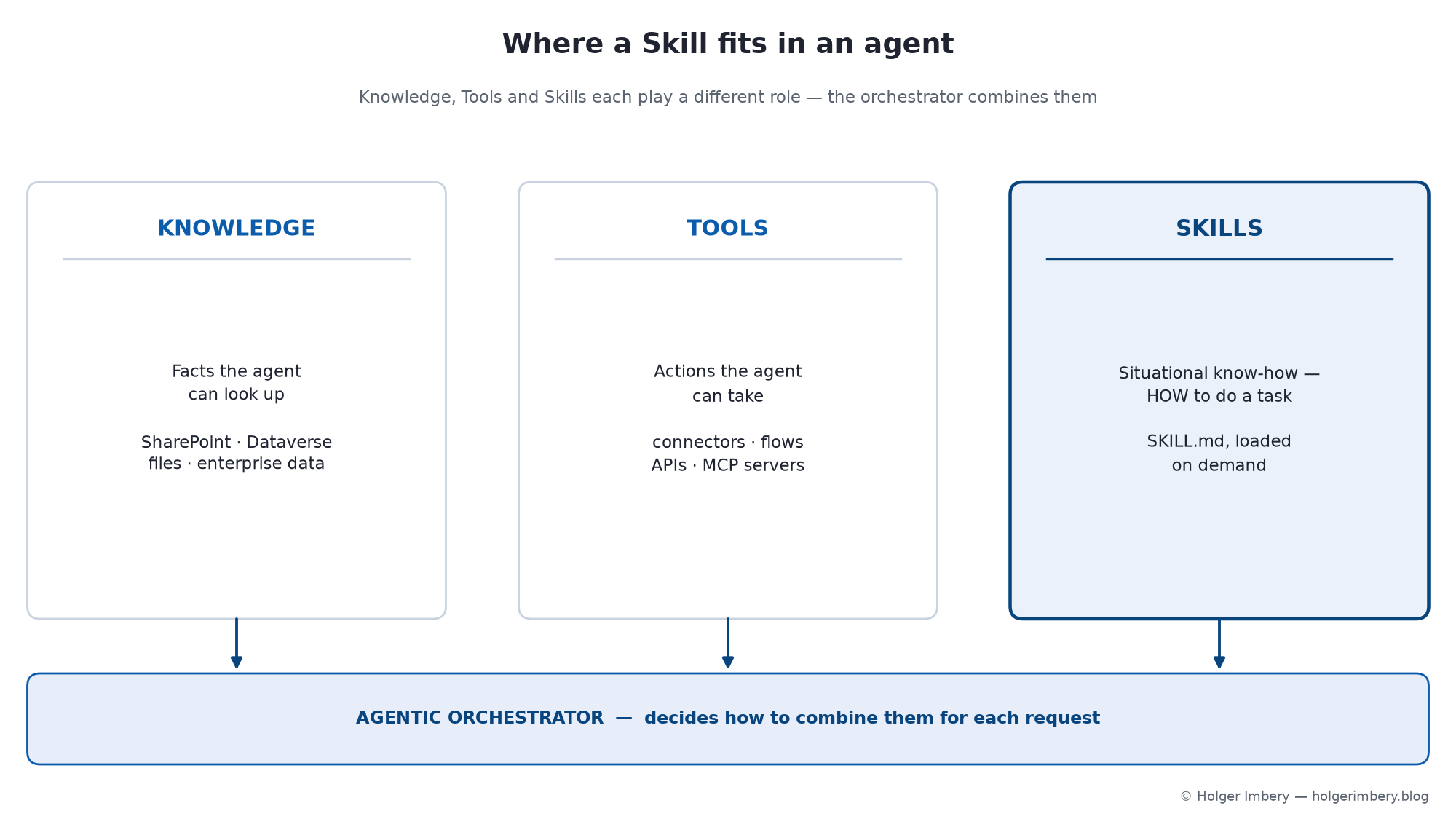 Figure 1 — Where a Skill fits. Knowledge supplies the facts, Tools carry out the actions, and a Skill provides the know-how needed to carry out a task. The orchestrator then brings these together when required.
It helps to compare Skills to the other components inside an agent:
- A tool connects to an external service. A Skill doesn’t.
- Knowledge supplies reference facts. A Skill doesn’t.
- A Skill provides the procedure—the step-by-step way your organization does something that the model can’t figure out on its own.
Knowledge  ->  facts the agent can look up
Tools      ->  actions the agent can take
Skills     ->  the know-how to use both well
There are two important things to know. First, the format is not unique to Copilot Studio: Skills use the Agent Skills open format, which started with Anthropic and is now also used by GitHub Copilot and Claude Code. Second, a Skill guides the agent instead of forcing it. The model still looks at the situation and decides whether to follow the Skill exactly or adjust. The Skill just makes sure the right procedure is available when needed.
Why factor behavior into a Skill
A Skill is just a set of instructions, so you might wonder why separate them at all. There are four reasons: two apply almost everywhere, and two depend on your situation.
- Manageability. Each Skill is a focused unit you can review and version on its own, instead of one instruction blob that keeps growing.
- Context management. Skills load only when needed. By default, the agent keeps just the names and descriptions, and brings in the full instructions when a task matches. This means that having ten Skills only adds ten short descriptions per turn, not ten full sets of instructions, so the context window stays small.
- Accuracy. A Skill can include detailed guidance on using tools—such as which tool to use, which parameters are important, how to write a query, what to check before calling, and what to do if a tool returns nothing. This guidance loads only when it’s relevant. With large or overlapping toolsets, this can make tool calls more reliable. However, it depends on your use case, so please test it rather than assuming it will work.
- Speed and cost. When you guide the agent to the right approach, it does fewer searches, tool calls, and reasoning steps before answering. This also depends on your use case, so be sure to measure it.
Anatomy of a SKILL.md
Every Skill is the same shape: YAML front matter (name and description) followed by a Markdown body (the instructions).
---
name: architecture-review
description: Reviews solution designs for compliance with enterprise
  architecture standards. Use when the user asks for architecture
  validation, design critique, platform fit, or governance review.
  Do not use for cost estimation or licensing questions.
---

# Objective
Review a solution architecture and identify risks, gaps, and recommendations.

# Process
1. Identify the business goal.
2. Extract the proposed architecture.
3. Check integration, security, data, and governance concerns.
4. Identify missing decisions.
5. Produce a concise review with risks and recommendations.

# Rules
- Do not assume undocumented requirements.
- Separate facts from recommendations.
- Highlight open questions.
- Prefer enterprise platform standards where applicable.
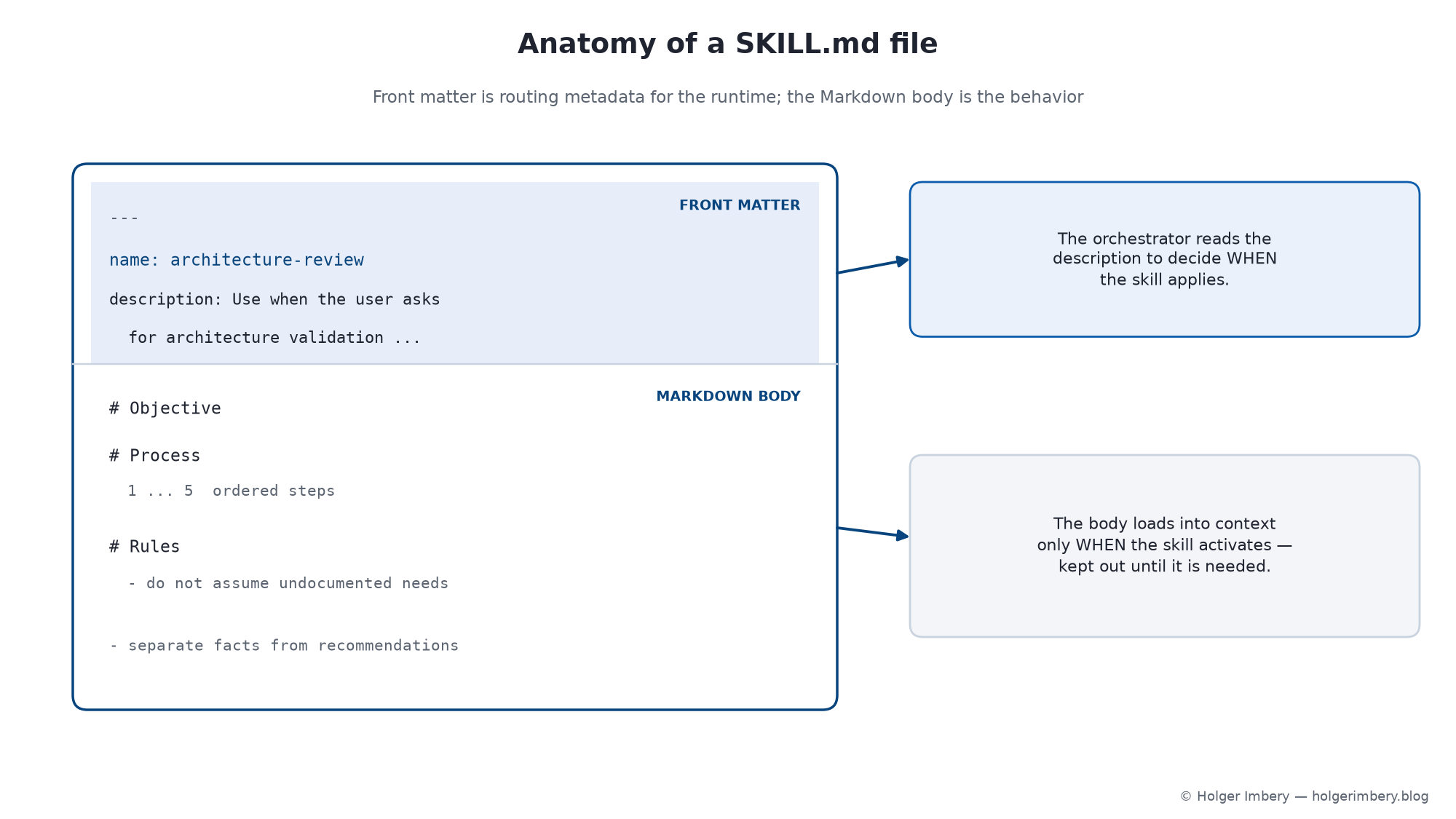 Figure 2 — Anatomy of a SKILL.md file. The YAML front matter acts as routing metadata, and the Markdown body contains the behavior. The front matter (name and description) is what the runtime reads to decide when the Skill applies. The Markdown body is the behavior, and it loads only when the Skill is activated.
Naming. Use only lowercase letters, numbers, and hyphens, with no hyphen at the start or end (for example: customer-support-escalation). Choose a clear, descriptive kebab-case name. When you download a Skill, the file uses this name, so a good name makes for a good filename. The open format limits names to 64 characters and descriptions to 1024.
The description is important. It acts as routing metadata for the runtime, not just a comment for people. The orchestrator reads it to decide if the Skill fits a request. For example, ‘Helps with architecture’ is too vague and may activate at the wrong times. A good description explains what the Skill does, when to use it, and when not to use it. This helps the orchestrator choose the right Skill at the right time.
Adding code: bundling scripts and resources
For many Skills, instructions alone are enough. If you need to include more than just text, package everything as a ZIP file with SKILL.md at the root and any supporting files you need. The open format uses this folder structure, and Copilot Studio supports it now:
my-skill/
├── SKILL.md        # required: metadata + instructions
├── scripts/        # optional executable code (e.g. Python)
├── references/     # optional documentation the Skill can consult
└── assets/         # optional templates and other resources
Two things to know about the code part:
- Bundled scripts run in the agent’s sandbox when needed. A Skill can include a Python script and reference it in its instructions; the script loads when the Skill is selected. For example, the CAT gallery’s PowerPoint Deck Designer builds decks from a JSON spec using python-pptx in the agent’s Python container, without needing an external Azure Function. Microsoft’s CAT team plans to release a detailed guide on scripts and resources, so check runtime details in Preview as they may change.
- Skills can also point to the agent’s own tools, not just bundled scripts. Instructions can say ‘use the order-lookup action here,’ referring to actions, flows, connectors, or MCP servers the agent already has. This is a soft pointer: the Skill names the capability but does not bind to it or grant access. If the agent does not have that tool, the step cannot be completed. Even if the tool exists, the orchestrator still decides whether to use it.
How the orchestrator finds and runs your Skill
You don’t call a Skill directly. The orchestrator selects it from its name and description when the conversation matches, then follows the instructions step by step, including reaching for the right tool at the right moment.
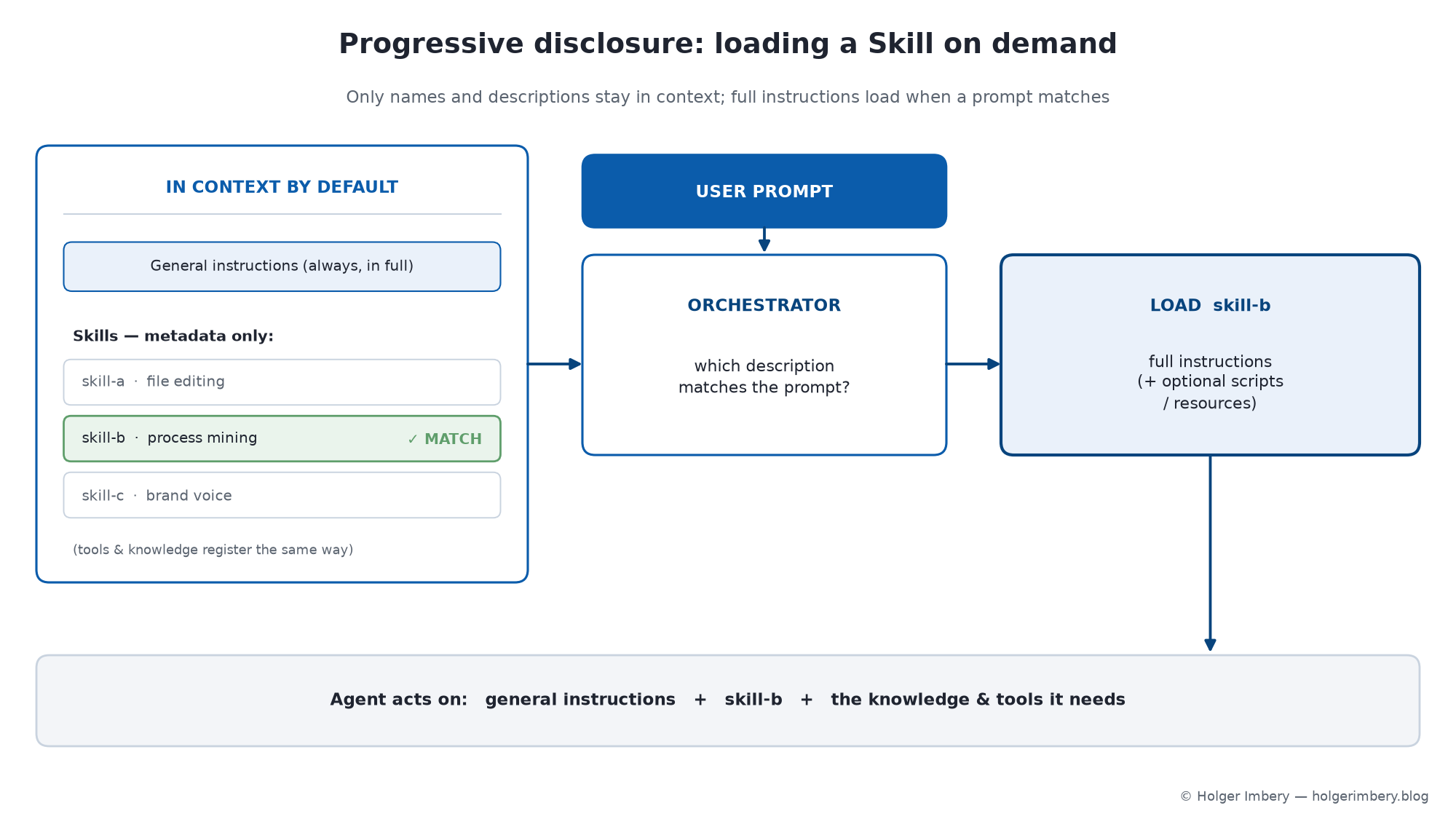 Figure 3 — Progressive disclosure. Only names and descriptions sit in context by default; on a matching prompt, the orchestrator loads that Skill’s full instructions (and any bundled scripts or resources), then the agent acts on its general instructions plus the Skill plus the knowledge and tools it needs.
This works because Copilot Studio registers knowledge, tools, and Skills in the same way: only their metadata is kept in context by default, and the full content loads on demand when a prompt matches. The agent’s top-level instructions are the exception—they are always loaded in full. This approach is called progressive disclosure, or dynamic loading, and it helps keep large agents manageable.
Agent context (always):   general instructions
In view by default:       metadata for Knowledge A,B,C · Tools A,B,C · Skills A,B,C
User prompt  ->  orchestrator evaluates: which Skill matches?
Match: Skill B  ->  load Skill B's full instructions (+ optional scripts/resources)
Agent acts on:   general instructions + Skill B + the knowledge/tools it needs
The reasoning view is your main place for debugging. You can watch the orchestrator load a matching Skill and see how it follows the instructions. Use this view to adjust when Skills activate:
- Fires too often → the description is too broad.
- Never fires → too narrow, or it doesn’t match the words your users actually use.
Creating a Skill in Copilot Studio: three ways
Prerequisite for all three: an agent created in the new experience. Skills live in the Skills area of the agent’s Build tab.
Path A — create from blank
- Open your agent and select the Build tab.
- In the components panel, select Skills.
- In Add skill, select Create from blank.
- Fill in the three pieces that matter: Name (kebab-case), Description (what it does, when to activate, and when not to), and Instructions (Markdown: steps, response formats, constraints, edge cases).
- Select Create. The Skill appears in the components panel.
Next, test it in the Preview tab to make sure it activates and works as expected. Skills you create from blank remain editable.
Path B — with chat assistance
You can also create a Skill by drafting it in a chat, instead of starting from scratch. The result is the same portable Skill, but the chat helps you shape the name, description, and instructions. You can refine it later in the configuration panel.
Path C — author externally and upload
If you prefer your own editor and source control, you can write the Skill as a file and upload it. In the components panel, select Skills, then Add skill and choose Upload a skill. Drag and drop the file onto the upload box or browse to it. The system will check the file and add the Skill.
| Accepted upload format | Contents |
|---|---|
Markdown file (.md) |
Skill name and description in YAML front matter, plus Markdown instructions. |
ZIP package (.zip) |
Must include a SKILL.md (front matter + instructions). May optionally include supporting files: scripts, templates, reference documents. |
Current scope. Once you add a Skill, it belongs to that agent. If you add the agent to a Power Platform solution, the Skill moves through your ALM lifecycle with it. As of mid-2026, there is no shared, cross-product catalog—distribution is per agent—but a better way to share Skills is being developed.
Writing instructions that actually work
Write the body in Markdown and cover at least five things:
- The task the Skill handles, stated up front.
- Step-by-step guidance for how the agent should respond.
- Formatting for the response — length, structure, what to emphasize.
- Edge cases and how to handle them.
- Tool references, where they apply.
Write the description as routing metadata. This is the part that makers most often get wrong.
- Name specifically: HR Leave Eligibility Triage, not HR Help.
- Say when to use it — and when not: “Use for leave eligibility and required documentation. Do not use for payroll or benefits enrollment.”
- A good test: if two reasonable makers would disagree about when the Skill applies, the description is not specific enough yet.
Pick the shape the job needs. A Skill can take whatever form fits the task. This menu helps when you’re deciding what to write:
| Think of a Skill as a… | Useful when the job is… | Example |
|---|---|---|
| Reference manual | Understanding a proprietary data model or schema the model doesn’t know | Documenting your data model so a data tool returns the right thing |
| Specialist you call in | A narrow area of expertise needed only occasionally | Region-specific tax rules, applied only when that region comes up |
| Playbook | There’s a known set of plays for a recurring situation | Triaging a support request: classify, then route by category |
| Standard operating procedure | A task must be done the same, compliant way every time | Handling a refund within policy windows and approval limits |
| Briefing pack | The agent needs background before it can act well | Onboarding context read before answering HR questions |
| Checklist | Certain validations must not be skipped | Pre-submission validation before a record is created |
| Protocol | There are firm rules for a sensitive case | What to do when a user reports a suspected security incident |
| Runbook | An operational task has defined steps and failure handling | Run a pipeline: discover, analyze, add an ROI pre-scan, format the result |
| Template | Output must follow a fixed structure or house style | Generating a standardized report to a fixed format |
Start simple and improve your Skill based on Preview testing. It’s better to have a small, correct Skill than a large, vague one. You can add edge cases after the main process works.
A worked example, end to end (illustrative)
This is an example package that follows the documented format. Use it as a pattern, not as official sample text.
SKILL.md:
---
name: customer-support-escalation
description: >-
  Use when a customer reports an issue a previous reply did not resolve,
  requests a refund or credit above the standard threshold, or explicitly
  asks for a supervisor, manager, or human agent. Do not use for general
  product questions or order-status lookups.
---

# Customer support escalation

## When to use this skill
Activate when the user:
- Reports an issue a prior response did not resolve
- Requests a refund or credit above the standard threshold
- Explicitly asks for a supervisor, manager, or human agent

## Steps
1. Acknowledge the concern and apologize briefly.
2. Collect the order or case number, a one-line summary, and the desired outcome.
3. Use the **Create Ticket** action to open a ticket with priority = High.
4. Confirm the ticket number and the expected response window.

## Response format
- Keep responses under 120 words.
- End every response with the ticket number in **bold**.

## Edge cases
- If no order number is available, ask once, then proceed with the email on file.
- Never promise a specific refund amount; state that a specialist will confirm.
Package it as a ZIP with SKILL.md at the root and any resources the instructions refer to:
customer-support-escalation.zip
├── SKILL.md
├── scripts/
│   └── format_ticket.py       # optional helper the instructions can reference
├── assets/
│   └── escalation_reply.md     # optional response template
└── references/
    └── refund_policy.md        # optional reference document
There are two code mechanisms here: step 3 points to the agent’s Create Ticket action (a tool the agent must already have), while scripts/format_ticket.py is a bundled script that the Skill includes and references directly.
Managing Skills across their lifecycle
The Skills section of the Build tab lists every Skill on the agent. From there:
- View — the section shows everything you’ve added.
- Edit (blank-created Skills) — select it, update Name, Description, or Instructions, then Save and re-test in Preview.
- Download — open the Skill’s panel. For a Skill you created from blank, use the Download icon. For an uploaded Skill, use the menu and select Download. The file downloads as Markdown (with name and description in the front matter, plus instructions), and the filename matches the Skill’s name.
- Replace (uploaded Skills) — edit the file in your editor, then … → Replace and browse to it. You can also swap in a different Skill.
- Delete — select the X and confirm. Deletion is permanent for that agent, so download the Skill first if you might want to keep it.
Should it be a Skill, an instruction, or a new agent?
Two decisions come up constantly.
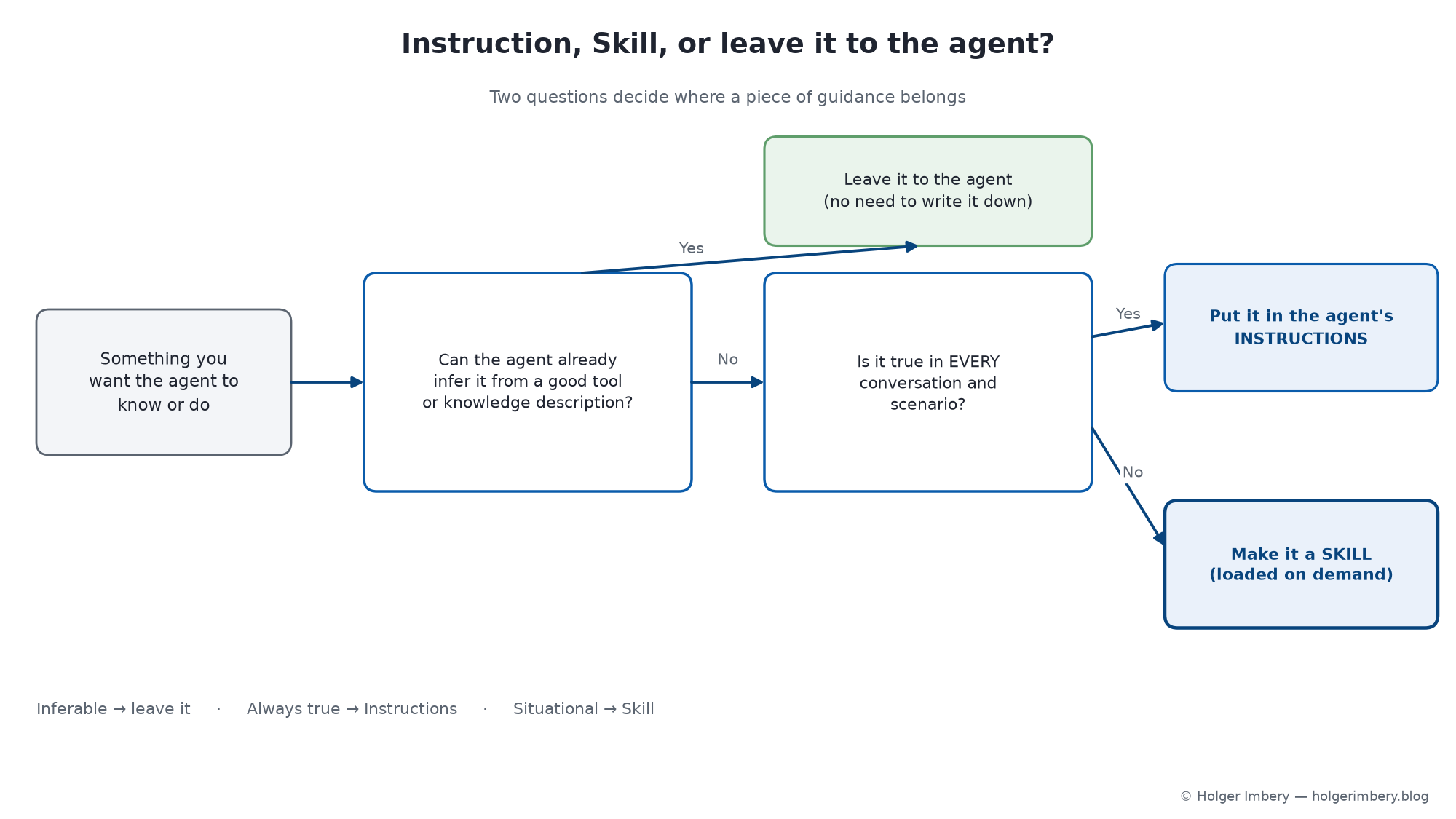 Figure 4 — Where a piece of guidance belongs. If the agent can infer it from a good tool or knowledge description, leave it out. If it’s true in every conversation, put it in instructions. If it’s only needed sometimes, make it a Skill.
Instruction, or a Skill? By the time you’re weighing this, one thing is settled: the agent can’t infer this on its own. The only question is where it goes.
Is it something the agent can infer from tool/knowledge descriptions?
        └─ Yes ->  leave it to the agent; don't write it down
        └─ No  ->  Is it true in EVERY conversation, for every scenario?
                     └─ Yes ->  put it in the agent's INSTRUCTIONS
                     └─ No  ->  make it a SKILL (situational, loaded on demand)
Tone, the agent’s role, and always-on guardrails are always true, so they go in instructions. Anything that applies only in certain situations should go in a Skill.
Skill, or a new agent? Before Skills, the instinct for every distinct task was another specialized agent. But three tasks that share the same audience and knowledge boundary are often one agent with three Skills, not three agents. Two things still point to a separate agent:
- It would stand on its own. An HR assistant and an IT support agent serve different audiences behind different security boundaries — build the agent.
- If one agent has too many tools, its accuracy can drop as the context gets crowded, and adding more Skills won’t fix it. When this happens, split the work into a separate agent and let it handle that part. Test this with your own agent to see what works best.
The naming trap: this is NOT a Bot Framework skill
Keep this one clean. Copilot Studio has used the word Skill before, and the two meanings are unrelated.
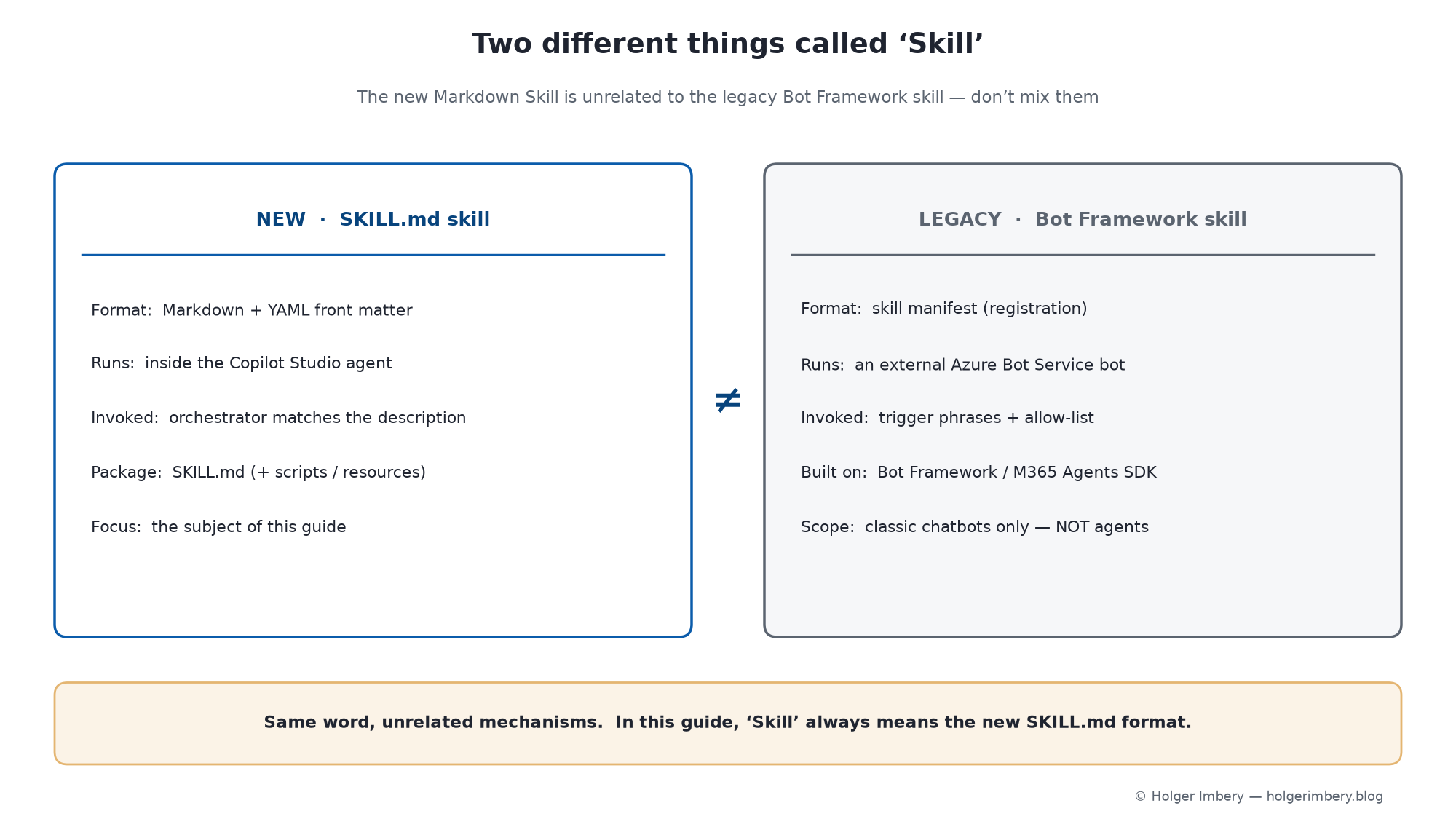 Figure 5 — The naming trap. There are two different things called Skill: the new SKILL.md Skill and the legacy Bot Framework skill. They only share a name; the format, runtime, and how you use them are different. In this article, ‘Skill’ always means the new Markdown format.
| Term | Legacy (classic) meaning | New-experience meaning |
|---|---|---|
| Skill | An externally registered bot capability (Bot Framework / Microsoft 365 Agents SDK), added via a manifest URL | A Markdown-based reusable instruction module (SKILL.md) |
| Format | Manifest / registration-based; hosted bot endpoint | SKILL.md — YAML front matter + Markdown package |
| Where it runs | An external Azure Bot Service bot | Inside the Copilot Studio agent (new experience) |
| How it’s invoked | Trigger phrases + an allow-listed skill call | The orchestrator matches the Skill’s description |
| Primary value | Integration with external, pro-code bot logic | Modular, reusable behavior and instruction reuse |
The classic sense is still real and still documented: you can convert a bot into a skill and register it via a manifest, and Copilot Studio supports skills built on Bot Framework SDK 4.12.0+ and Microsoft 365 Agents SDK v1.0.0+. Microsoft’s guidance on using a classic chatbot as a skill is explicit that it applies to classic chatbots only and isn’t available for Copilot Studio agents.
How to tell which one a document means: a SKILL.md, YAML front matter, or a ZIP package means the new model. A skill manifest, an allow list, an Azure Bot Service bot, or “classic chatbot” means the legacy model — and it doesn’t apply to the agents here. Throughout this article, ** skills ** are the new Markdown format.
Treat Skills as a trust surface — and a governed asset
A Skill affects how the agent behaves, and since it can now include scripts, it is a trust surface. Treat any Skill you did not write—whether it comes from the community, is generated by AI, or reused from another environment—like untrusted code: review it before adding it. Check for prompt injection, instructions that misuse tools, or anything that does not match what the Skill is supposed to do.
Reuse has pros and cons: one Skill can serve many agents, but a bad Skill can spread problems just as widely. Governance needs to keep up with this:
- Store shared Skills in version-controlled repositories; use pull requests for changes to the important ones.
- Give each Skill an owner, and keep a changelog for production ones.
- Keep descriptions precise and testable—they are routing metadata (see sections 3 and 7).
- Avoid broad, overlapping Skills that compete for activation.
- Separate policy knowledge (→ Knowledge) from procedure (→ Skill).
- Test with realistic user requests, and review high-impact Skills with security, compliance, legal, or architecture stakeholders.
Because Skills are just Markdown files, they can be version-controlled, used with Git, reviewed through pull requests, and moved between agents. This keeps behavior as a long-lived, inspectable asset. Many call this Behavior as Code: a Center of Excellence maintains approved Skills, an architecture board owns review Skills, legal publishes controlled guidance, and delivery teams own documentation Skills—all reviewed and versioned.
You don’t have to start from scratch — the CAT Agent Skills gallery
You don’t have to write every Skill from scratch. Microsoft’s Customer Advisory Team (CAT) publishes CAT Agent Skills, a gallery of skills for your AI agents. These are community-contributed instruction and script bundles you can download as Markdown (and scripts) and add to Cowork, Copilot Studio, or Scout. The gallery lets you filter by platform (Copilot Studio has about 42 entries at the time of writing) and by type—Skills, Plugins, Automations—with tags like productivity, documents, automation, governance, and presentations.
A few entries teach authoring as much as they do a job:
| Skill | What it does | Why it’s a good example |
|---|---|---|
| Skill Authoring Coach | Helps makers design concise, reusable Skills with clear triggers, instructions, resources, and packaging | A meta-skill — use it to write better Skills |
| PowerPoint Deck Designer | Builds decks from a JSON spec with python-pptx, running natively in the agent’s Python container | Shows a Skill that bundles a script and runs code in the sandbox |
| Knowledge Source Router | Routes searches to the right region-specific source so answers stay locally accurate | A pure procedural Skill — behavior, not data or actions |
| Iterative File Editing | Version-numbers each edited file so every update actually lands | A tiny Skill fixing one specific behavior — the ideal narrow scope |
| Universal Document Converter | Converts between Markdown, HTML, PDF, Word, PowerPoint, and Excel offline with sandbox libraries | Self-contained, no-external-dependency packaging |
| Brand Voice Pass | Rewrites drafts to a house style | A classic Center-of-Excellence governance Skill, reused across agents |
The main idea is not any single entry, but the operating model. Because these are Markdown packages using the open Agent Skills format, a gallery like this works like a package registry for behavior: you can browse, download, add, and adapt them. Treat any imported Skill like a third-party dependency: read it, test it, and version it before using it in production (see section 12).
A creating-skills checklist
- Agent created in the new experience; you’re working in Build → Skills.
- Name is kebab-case, no leading/trailing hyphen, ≤64 characters.
- Description reads as an activation contract — what it does, when to use it, and when not to (≤1024 characters).
- Instructions cover task, steps, formatting, edge cases, and tool references.
- Any scripts/templates/reference files are bundled in a ZIP with SKILL.md at the root; the body references them explicitly.
- Tool usage is via soft-pointers to capabilities the agent actually has.
- Validated in Preview, and checked in the reasoning view for correct activation (not too broad, not too narrow).
- A copy kept in source control for versioning, review, and reuse.
- Confirmed you’re building a SKILL.md skill, not a legacy Bot Framework skill manifest.
Conclusion
Creating a Skill is meant to be simple: write a SKILL.md file, describe when it applies as if you were programming a router, add scripts or resources only if needed, upload it, and watch it work in the reasoning view. The key is to focus on the description and scope—a precise trigger, a narrow job—and to treat each Skill as a reviewable, versioned asset, not just a quick prompt.
If you follow this approach, you get what the model is designed for: instructions stay lean because situational behavior is kept in modules that the orchestrator loads only when needed. Since Skills use the open Agent Skills format shared with Claude and GitHub Copilot, behavior you write once can be reused elsewhere. That’s why SKILL.md is becoming a building block beyond Copilot Studio.
Sources
- Microsoft Learn — Skills overview for agents (preview)
- Microsoft Learn — Create a skill for an agent (preview)
- Microsoft Learn — Add an existing skill to an agent (preview)
- Microsoft Learn — Manage and delete skills in an agent (preview)
- The Custom Engine (Microsoft CAT) — Modern Agents Have Skills Now — Here’s How They Work in Copilot Studio
- Microsoft CAT — CAT Agent Skills gallery
- Microsoft Learn — Use a classic chatbot as a skill in a Bot Service bot (legacy Bot Framework skills — classic only)
- Anthropic — Agent Skills overview (SKILL.md, YAML front matter, progressive disclosure)