
Table of Contents
- Benefits of Connecting Azure Application Insights to Copilot Studio
- Key Benefits Overview
- How Telemetry Is Collected
- What Metrics and Data Are Available
- Built-In Analytics vs. Application Insights
- Technical Benefits
- Business Value and Strategic Advantages
- Best Practices
- Connect your Copilot Studio agent to Application Insights
- Conclusion
Summary Lede
Agentic systems demand visibility. By connecting Azure Application Insights to your Copilot Studio agents, you gain enterprise-grade monitoring that goes far beyond built-in analytics—enabling real-time diagnostics, performance optimization, and strategic business insights in a single integrated platform.
Why read this: You’ll discover how to unlock faster issue detection and resolution, measure and improve user experience, demonstrate ROI to stakeholders, and establish the telemetry foundation that separates high-performing teams from those operating blindly. This guide walks through prerequisites, configuration steps, and best practices to help you implement a mature observability strategy immediately.
As agentic systems grow in complexity and autonomy, visibility becomes critical. Analytics illuminate how agents interpret user intent, make decisions, and interact with external systems—transforming a “black box” into an understandable, debuggable, and continuously improving system. In production environments, telemetry reveals performance bottlenecks, catches errors before users notice them, and provides the evidence base for optimizing agent behavior and dialog flows. Without analytics, teams operate blindly; with it, they make data-driven decisions and build trust through transparency.
Benefits of Connecting Azure Application Insights to Copilot Studio
Connecting Azure Application Insights to Microsoft Copilot Studio agents significantly extends your monitoring, diagnostics, and analytics capabilities far beyond the native tooling provided by Copilot Studio alone. Application Insights, a powerful component of the broader Azure Monitor platform, is a fully extensible Application Performance Management (APM) service designed to meet enterprise-scale requirements. This service captures granular message-level telemetry, topic trigger events, interaction latency measurements, custom domain-specific events, and comprehensive error details in near real-time, enabling immediate visibility into agent behavior. By establishing this integration, organizations gain access to both fine-grained technical observability, which empowers engineering teams to debug and optimize agent performance, and strategic usage intelligence, which informs business stakeholders about adoption patterns, user satisfaction trends, and operational efficiency metrics.
Key Benefits Overview
| Benefit Area | Technical Capabilities | Business / Strategic Value |
|---|---|---|
| Real-Time Monitoring | Live telemetry stream of conversations; configurable Azure Monitor alerts for anomalies or thresholds | Proactive issue detection minimizes downtime; enables swift scaling responses during usage spikes |
| Performance Optimization | Latency and performance data per interaction; Smart Detection flags unusual performance drops automatically | Faster, more reliable agent increases user satisfaction; reduces abandonment from slow responses |
| Diagnostics & Error Logging | Automatic capture of exceptions with full context (stack traces, conversation state, topic/step); custom telemetry events for domain-specific tracking | Faster troubleshooting lowers support costs; higher reliability builds user trust |
| User Interaction Analytics | Conversation counts, active users, channels, topics triggered, session durations — queryable via KQL | Data-driven improvements to dialog design; evidence base for prioritizing development effort |
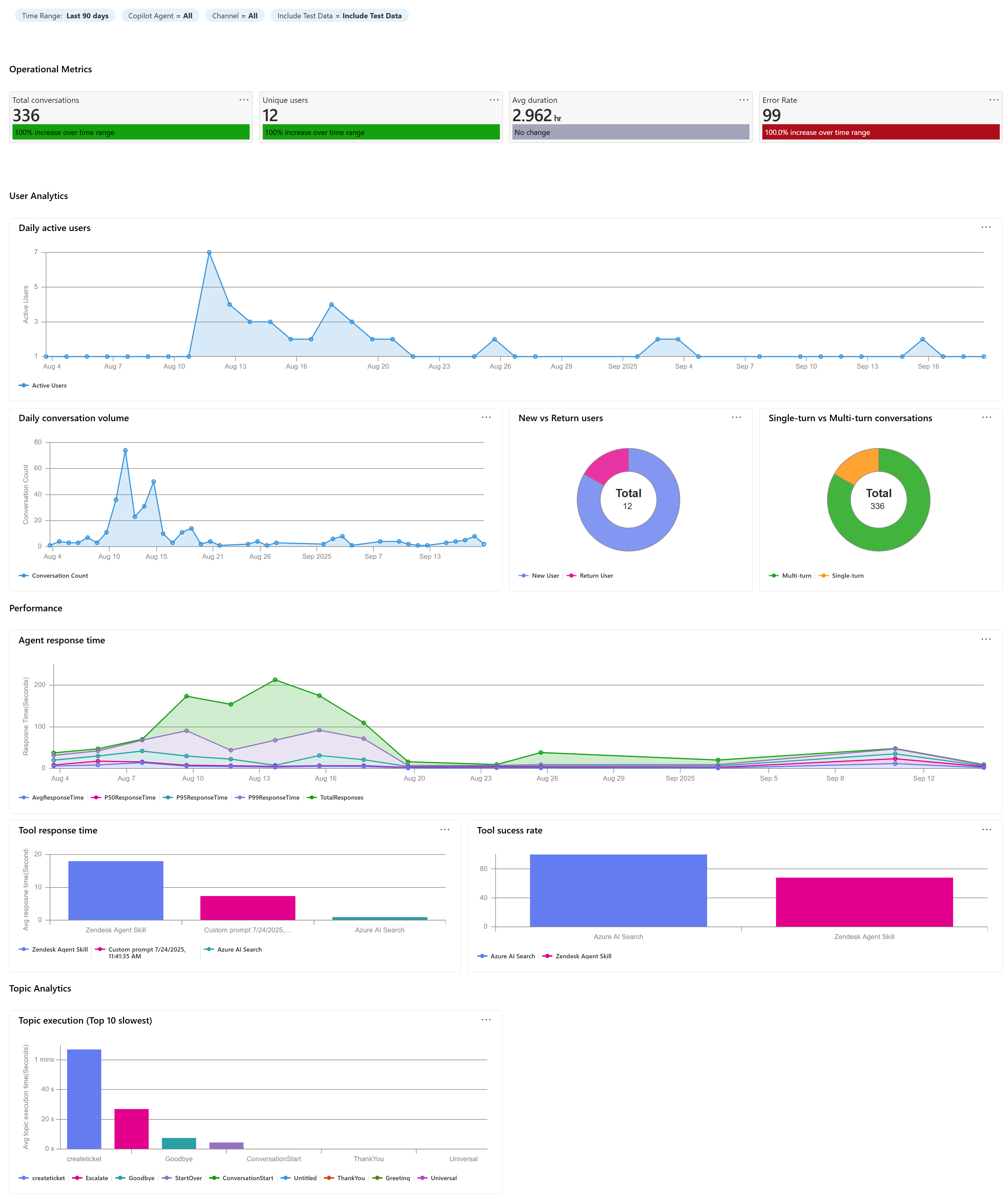
| Dashboards & Reporting | Pre-built Copilot Studio Dashboard (Azure Workbook) with total conversations, latency, exceptions, tool usage, and topic analytics — editable and shareable | Cross-functional visibility for technical and business stakeholders; supports ROI reporting |
| Ecosystem Integration | Connects to Power BI, Azure Data Lake, Azure Monitor alerts, and other Azure services | Enterprise-grade reporting pipelines; cross-system correlation between bot telemetry and business outcomes |
| Custom Events & Extensibility | “Log a custom telemetry event” action in Copilot Studio for domain-specific tracking; KQL for arbitrary analysis | Tailored KPI tracking (resolution rates, conversion events); structured A/B testing of agent configurations |
How Telemetry Is Collected
Setting up Application Insights for your Copilot Studio agents involves configuring where and how telemetry data flows. The process is straightforward but requires understanding key configuration options and prerequisites. Here’s what you need to know to get started:
- Per-agent configuration: There is no tenant-wide switch. Each agent must be connected to Application Insights individually.
- Setup: Add the Application Insights connection string in
Settings → Advanced → Application Insightswithin Copilot Studio. - Azure Subscription: Required to use Application Insights.
- Logging Options:
Log activities: Logs all incoming/outgoing messages and events.Log sensitive Activity properties: Includesuserid,name,text, andspeak. Off by default due to privacy implications.
What Metrics and Data Are Available
Custom Dimensions
Telemetry records include rich metadata in the customDimensions field:
| Field | Description | Sample Values |
|---|---|---|
type |
Type of activity | message, conversationUpdate, event, invoke |
channelId |
Channel identifier | emulator, directline, msteams, webchat |
fromId |
Sender identifier | <id> |
fromName |
Username from client | John Bonham, Keith Moon |
locale |
Client origin locale | en-us, zh-cn, de-de |
recipientId |
Recipient identifier | <id> |
recipientName |
Recipient name | John Bonham, Keith Moon |
text |
Text in message | find a coffee shop |
designMode |
Whether conversation occurred in the test canvas | True / False |
Note: Data quality varies by channel. For example, unique user counts are only reliable when users are authenticated.
Built-In Copilot Studio Dashboard
Copilot Studio provides a pre-built Azure Workbook dashboard that offers immediate visibility into your agent’s performance and usage patterns. This dashboard aggregates key metrics without requiring custom configuration:
- Location:
Application Insights → Monitoring → Workbooks → Copilot Studio Dashboard - Metrics Included: Total conversations, latency, exceptions, tool usage, topic analytics
- Customizable: Add tiles using KQL, save and share dashboards with team members (requires Reader role)
KQL Querying
Use Kusto Query Language (KQL) to analyze telemetry data:
let queryStartDate = ago(14d);
let queryEndDate = now();
let groupByInterval = 1d;
customEvents
| where timestamp > queryStartDate
| where timestamp < queryEndDate
| summarize uc=dcount(user_Id) by bin(timestamp, groupByInterval)
| render timechart
To exclude test conversations:
customEvents
| extend isDesignMode = customDimensions['designMode']
| where isDesignMode == "False"
Built-In Analytics vs. Application Insights
| Use Case | Built-In Analytics | Azure Application Insights |
|---|---|---|
| Track topic usage and completion | yes | yes (with custom events) |
| Understand user satisfaction | yes | yes (if instrumented) |
| Debug dialog transitions | no | yes |
| Monitor API latency or errors | no | yes |
| Visualize trends over time | yes (limited) | yes (custom dashboards) |
| Correlate with external systems | no | yes |
| Alerting and anomaly detection | no | yes |
Application Insights complements — not replaces — built-in analytics.
Technical Benefits
Application Insights delivers powerful technical capabilities that transform agent monitoring and diagnostics:
- Live Metrics: Real-time monitoring of bot activity.
- Smart Detection: Automatic anomaly and performance issue detection.
- Custom Telemetry: Log domain-specific events from within Copilot Studio.
- Centralized Monitoring: Consolidate logs, metrics, and traces across agents.
- Scalability: Monitor bots across multiple environments and regions.
- Extensibility: Integrate with Power BI, Azure Data Lake, and more.
Business Value and Strategic Advantages
Application Insights transforms agent monitoring from a purely technical exercise into a strategic business tool. By connecting telemetry data to measurable outcomes, organizations can demonstrate ROI, accelerate innovation cycles, and build confidence in agentic systems. The following sections explore the key business advantages:
Data-Driven Decision-Making
Telemetry provides the foundation for evidence-based improvements across your agent ecosystem.
- Use telemetry to understand user behavior, optimize dialog flows, and prioritize development.
- Dashboards and reports provide evidence for product decisions and stakeholder communication.
Operational Efficiency
Application Insights dramatically reduces the time and effort required to maintain reliable agents in production. By automating detection and providing detailed diagnostics, teams can respond faster to issues and prevent recurring problems from consuming resources.
- Reduce mean time to detect and resolve issues.
- Identify systemic issues and eliminate recurring failures.
Customer Satisfaction
Application Insights enables you to measure and enhance user experience by providing visibility into agent responsiveness and identifying friction points in conversations. By understanding where users encounter delays or confusion, teams can make targeted improvements that directly impact satisfaction and retention.
- Improve response times and reduce errors.
- Analyze drop-offs and confusion points to refine UX.
Compliance and Auditing
In regulated industries and enterprises subject to data governance requirements, comprehensive audit trails and compliance documentation are non-negotiable. Application Insights provides the forensic capabilities needed to demonstrate regulatory compliance, investigate incidents, and maintain defensible records of agent behavior and data handling.
- Maintain detailed logs for audit trails.
- Support regulatory requirements with timestamped, queryable data.
Best Practices
Implementing a robust telemetry strategy requires discipline and intentionality. The following best practices will help you maximize the value of Application Insights while minimizing operational overhead and ensuring data quality:
-
Log Meaningful Events: When instrumenting your Copilot Studio agents, focus exclusively on capturing events that provide actionable intelligence. This includes clear indicators of user intent (such as topic invocations or explicit requests), documented dialog outcomes (successful resolutions, escalations, or abandonment), and comprehensive error context. By avoiding noise and focusing on the signal, you reduce data volume while improving analysis quality and reducing query latency.
-
Use Correlation IDs: Implement correlation identifiers to link related activities across multiple services, dialogs, and organizational boundaries. This practice is essential in distributed systems where a user’s interaction may involve multiple agents, backend APIs, and cloud services. Correlation IDs enable end-to-end tracing of requests, making it significantly easier to diagnose complex failures and understand latency across the entire interaction pipeline.
-
Set Up Alerts: Configure Azure Monitor alerts on critical performance thresholds and anomalies. Rather than waiting to discover problems through manual dashboard review, proactive alerting ensures that your team is immediately notified of concerning patterns—such as sudden spikes in error rates, performance degradation, or unexpected traffic patterns. This enables rapid response before issues escalate into user-facing problems.
-
Review Dashboards Regularly: Establish a cadence for reviewing Application Insights dashboards with relevant stakeholders—both technical teams who investigate issues and business stakeholders who track adoption metrics. Regular review sessions transform telemetry from a passive record into an active feedback loop that informs prioritization, guides feature development, and validates hypotheses about agent behavior and user satisfaction.
Connect your Copilot Studio agent to Application Insights
Establishing a connection between your Copilot Studio agent and Azure Application Insights requires careful configuration to ensure telemetry data flows correctly to your monitoring environment. This section provides comprehensive guidance on the setup process, prerequisites, and optional configuration settings that affect which data is captured and transmitted.
Prerequisites and Initial Setup
Before you can establish a successful connection between your Copilot Studio agent and Application Insights, ensure that you have an active Azure subscription and an existing Application Insights resource. The connection process relies on authentication credentials stored in your agent’s configuration so that you will need administrative access to both your Copilot Studio environment and your Azure resources.
To initiate the connection process, navigate to the Settings page for your agent within Copilot Studio. From the Settings page, locate and select the Advanced tab. This tab contains configuration options not exposed in the standard settings interface and typically reserved for operational and monitoring settings.
Configuring the Application Insights Connection String
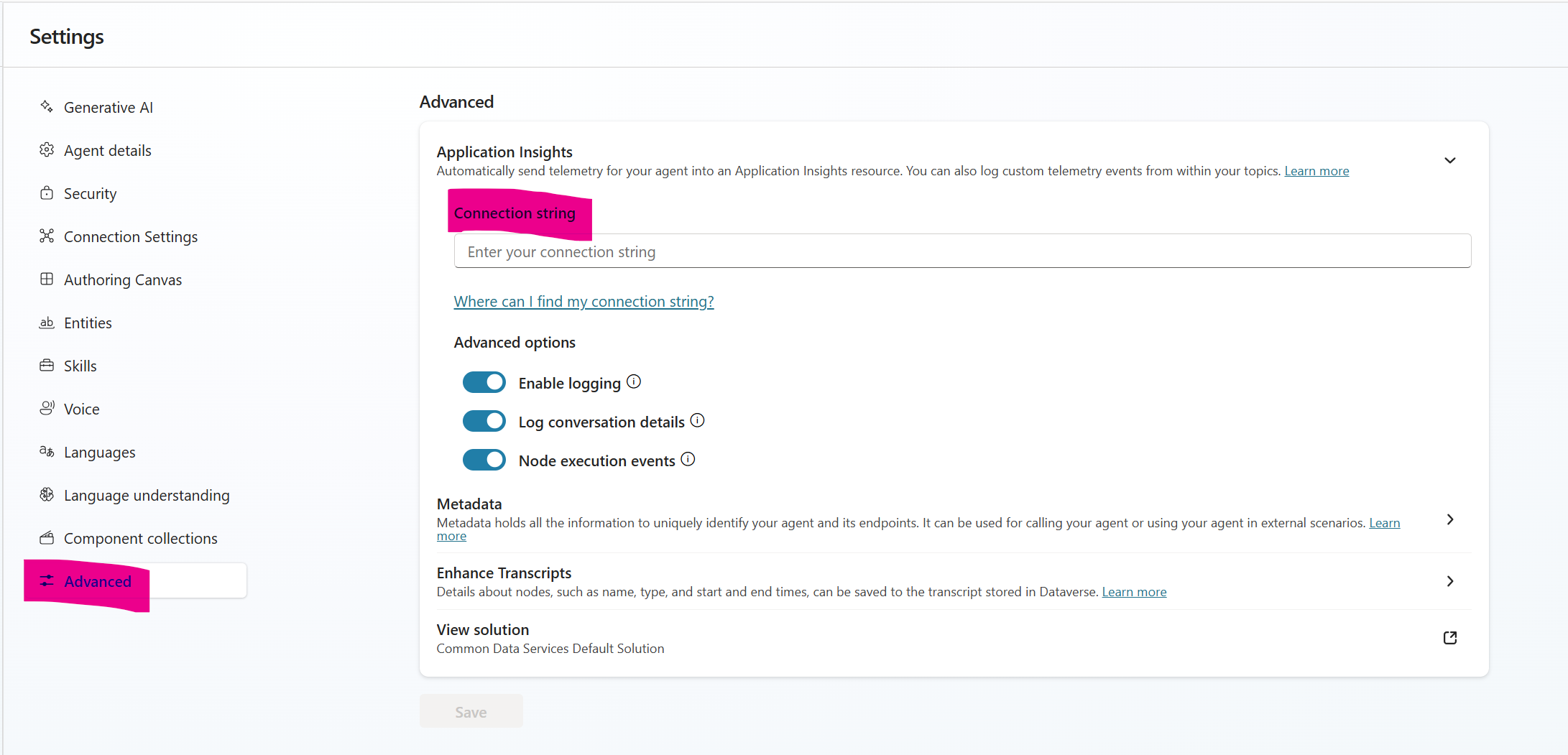
Within the Advanced settings tab, you will find a dedicated Application Insights section. In this section, locate the Connection string field and populate it with the connection string obtained from your Azure Application Insights resource.
The connection string serves as the authentication and routing credential that enables your agent to transmit telemetry data to your specific Application Insights instance securely. Refer to the Azure Monitor documentation for comprehensive instructions on locating and retrieving your connection string from your Application Insights resource in the Azure portal.
Optional Logging Configuration
In addition to basic connectivity, Application Insights offers two optional configuration flags that let you control the scope and sensitivity of captured telemetry data. These settings provide flexibility to balance comprehensive monitoring with privacy and compliance considerations.
Log Activities: When this setting is enabled, Application Insights captures comprehensive details of all incoming and outgoing messages exchanged between users and your agent, as well as all event notifications triggered during agent operation. This option provides maximum visibility into agent behavior and user interactions, enabling detailed diagnostics and comprehensive audit trails. However, enabling this option increases telemetry volume and may have cost implications for higher-traffic agents.
Log Sensitive Activity Properties: This setting governs whether certain data fields that may contain personally identifiable information (PII) or other sensitive information are included in logged telemetry. When enabled, the following properties are captured in logs: userid, name, text, and speak (note that the text and speak properties apply exclusively to message-type activities and are not captured for other event types).
By default, this setting is disabled due to data privacy and compliance considerations. Organizations operating under strict data governance frameworks, healthcare regulations (HIPAA), financial regulations (PCI-DSS), or general privacy standards (GDPR) should exercise caution when enabling this option. If enabled, ensure that appropriate data retention policies, encryption measures, and access controls are in place to protect sensitive information logged to Application Insights.
Conclusion
Connecting your Copilot Studio agents to Azure Application Insights represents a fundamental shift in how you approach agent observability and operational excellence. By moving beyond built-in analytics, you gain enterprise-grade monitoring capabilities that illuminate every aspect of agent behavior—from granular message-level telemetry to high-level strategic insights about adoption and ROI.
The integration delivers immediate practical benefits: faster issue detection and resolution, performance optimization grounded in real data, and comprehensive audit trails that satisfy regulatory requirements. It also turns your organization’s relationship with agentic systems from speculative to evidence-driven, so you can scale confidently and keep improving.
Whether your priority is reducing support costs, accelerating time-to-resolution, or demonstrating measurable business value to stakeholders, Application Insights provides the visibility and analytical power to achieve those goals. Start with the fundamentals—configure the connection string, enable appropriate logging, and establish a dashboard review cadence. As your telemetry practice matures, layer in custom events, automated alerts, and deeper correlation across your broader system ecosystem.
Telemetry infrastructure pays off right away and grows over time as your teams build data-driven habits, and your agents become more reliable, responsive, and aligned with business goals.